

- February 12, 2026
- Kishore Thutaram
- 1
Introduction
Modern Fiori applications are not just about forms and tables — they are about visual clarity. Business users often want to see the sequence of actions performed on a document in a clear, graphical format.
Instead of showing raw status records, we can display them visually using the Process Flow control in SAP Fiori.
In this article, we will build a status flow in a Fiori app using:
ABAP Function Module
OData/CDS exposure
SAPUI5 Fragment (ProcessFlow control)
Controller logic to build nodes and lanes dynamically
Let’s implement it step by step.
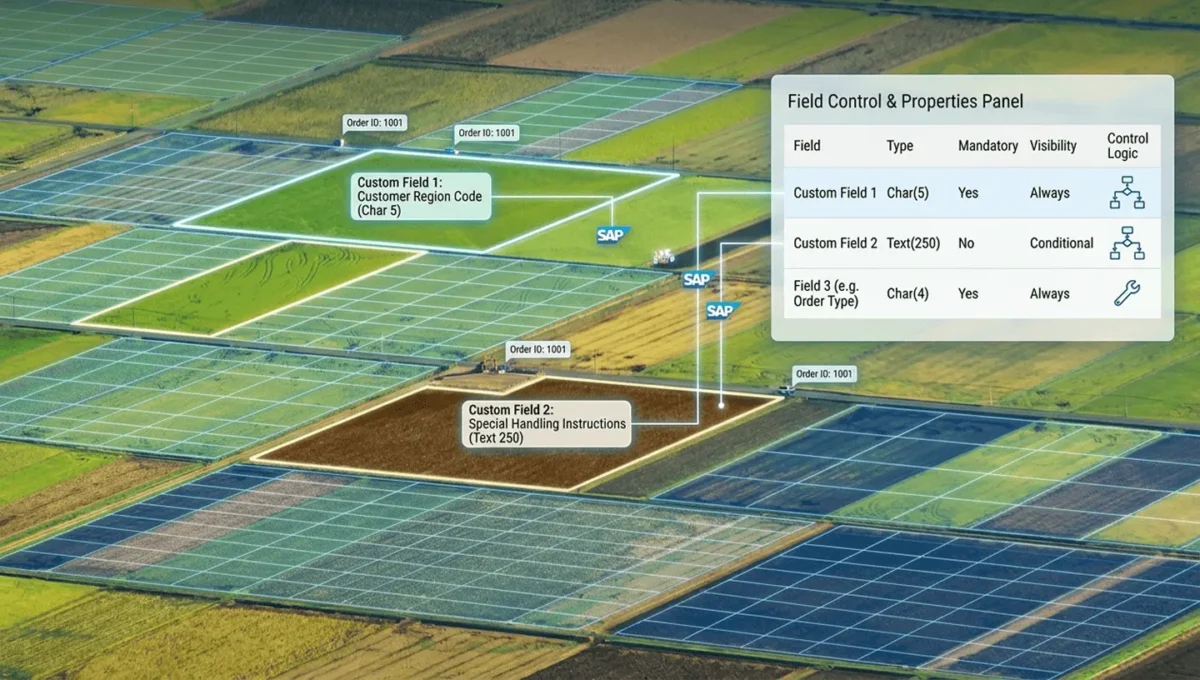
If you’re working on advanced UI5 enhancements like status flows, you might also explore custom fields in SAP S/4HANA using Fiori apps.
Business Scenario
Display a series of status actions in a Fiori application using the Process Flow screen control.
Each status step should show:
Status text
Date and time
User who set the status
Additional reference data
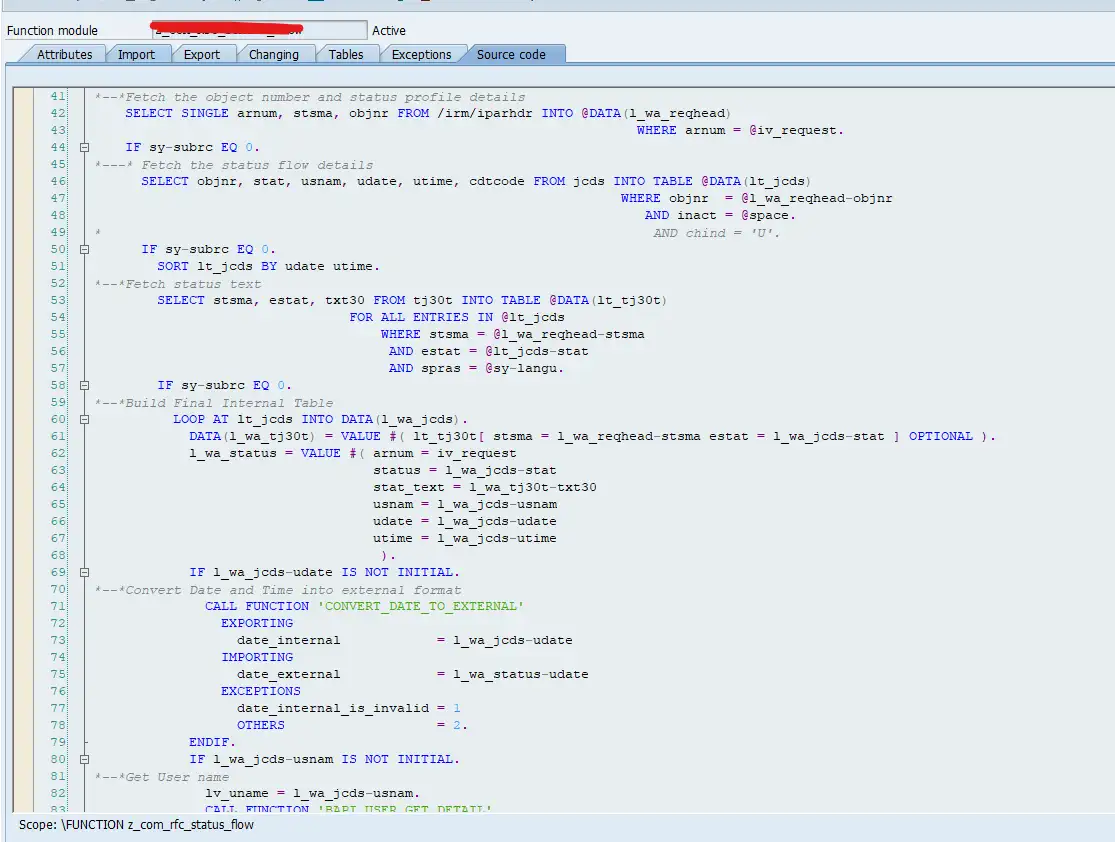
Step 1: Create ABAP Logic to Fetch Status Data
Create a Function Module (or class method) to fetch status records from backend tables.
The logic should:
Read status records for a document
Fetch status text
Fetch date and time
Fetch user name
Return structured internal table
This function will act as the data source for the Process Flow.
Step 2: Expose Data via OData / CDS
Next, expose the ABAP logic using OData or CDS.
Ensure:
Entity and Entity Set are created
Required fields (StatText, Udate, Utime, Usnam, Cdtcode) are mapped
Service is activated
Test the service to confirm multiple status records are returned.
Step 3: Create Fragment with Process Flow Control
In your SAPUI5 project, create a Fragment XML file.
Your fragment includes:
<comm:ProcessFlow id=”processflow2″
scrollable=”false”
nodes=”{pf>/nodes}”
lanes=”{pf>/lanes}”
nodePress=”onNodePress”>
Each node is defined using:
<comm:ProcessFlowNode
laneId=”{pf>lane}”
nodeId=”{pf>id}”
title=”{pf>title}”
children=”{pf>children}”
stateText=”{pf>stateText}”
texts=”{pf>texts}”
focused=”{pf>focused}”/>
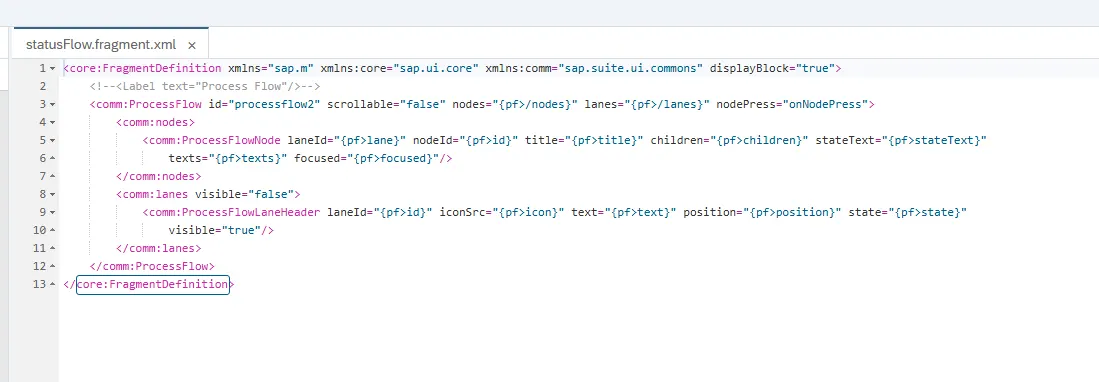
This binds nodes and lanes dynamically using model “pf”.
This fragment acts as the visual container for the status flow.
Step 4: Build Status Flow in Controller
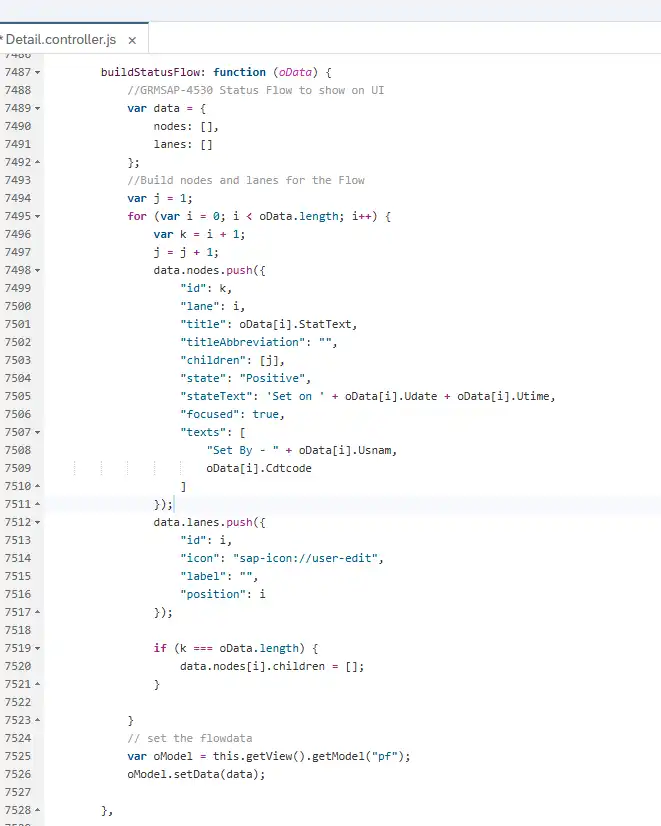
In the controller, implement the function:
buildStatusFlow: function (oData) {
Inside this function:
Create an empty structure:
var data = {
    nodes: [],
    lanes: []
};
Loop through OData response:
for (var i = 0; i < oData.length; i++) {Push nodes dynamically:
id
lane
title → Status Text
stateText → Date + Time
texts → User and code
children logic for sequencing
Push lanes dynamically.
Finally set model data:
var oModel = this.getView().getModel(“pf”);
oModel.setData(data);
This dynamic UI rendering approach is similar to how we generate multiple dynamic tiles inside a single SAP Fiori app.
This converts backend status records into a structured flow UI.
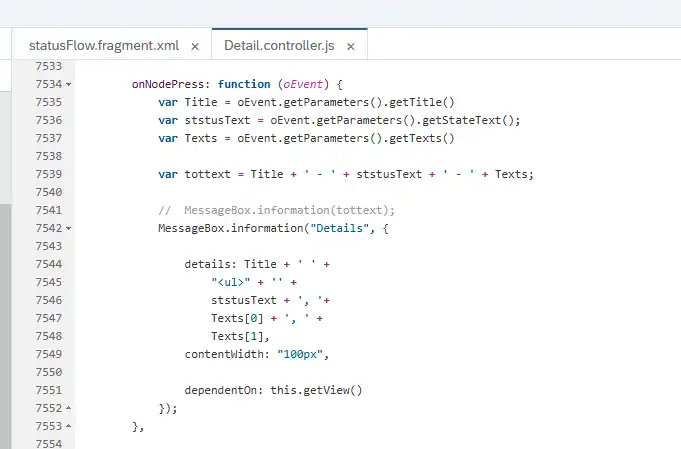
Step 5: Implement onNodePress (Optional)
If required, implement:
onNodePress: function(oEvent) {
You can:
Show detailed popup
Navigate to another view
Display status information
This step is optional and depends on requirement.
Step 6: Complete Code
Fragment – XML
<core:FragmentDefinition xmlns=”sap.m” xmlns:core=”sap.ui.core” xmlns:comm=”sap.suite.ui.commons” displayBlock=”true”>
<!–<Label text=”Process Flow”/>–>
<comm:ProcessFlow id=”processflow2″ scrollable=”false” nodes=”{pf>/nodes}” lanes=”{pf>/lanes}” nodePress=”onNodePress”>
<comm:nodes>
<comm:ProcessFlowNode laneId=”{pf>lane}” nodeId=”{pf>id}” title=”{pf>title}” children=”{pf>children}” stateText=”{pf>stateText}”
texts=”{pf>texts}” focused=”{pf>focused}”/>
</comm:nodes>
<comm:lanes visible=”false”>
<comm:ProcessFlowLaneHeader laneId=”{pf>id}” iconSrc=”{pf>icon}” text=”{pf>text}” position=”{pf>position}” state=”{pf>state}”
visible=”true”/>
</comm:lanes>
</comm:ProcessFlow>
</core:FragmentDefinition>
Controller – JS
buildStatusFlow: function (oData) {
//GRMSAP-4530 Status Flow to show on UI
var data = {
nodes: [],
lanes: []
};
//Build nodes and lanes for the Flow
var j = 1;
for (var i = 0; i < oData.length; i++) {
var k = i + 1;
j = j + 1;
data.nodes.push({
“id”: k,
“lane”: i,
“title”: oData[i].StatText,
“titleAbbreviation”: “”,
“children”: [j],
“state”: “Positive”,
“stateText”: ‘Set on ‘ + oData[i].Udate + oData[i].Utime,
“focused”: true,
“texts”: [
“Set By – ” + oData[i].Usnam,
oData[i].Cdtcode
]
});
data.lanes.push({
“id”: i,
“icon”: “sap-icon://user-edit”,
“label”: “”,
“position”: i
});
if (k === oData.length) {
data.nodes[i].children = [];
}
}
// set the flowdata
var oModel = this.getView().getModel(“pf”);
oModel.setData(data);
},
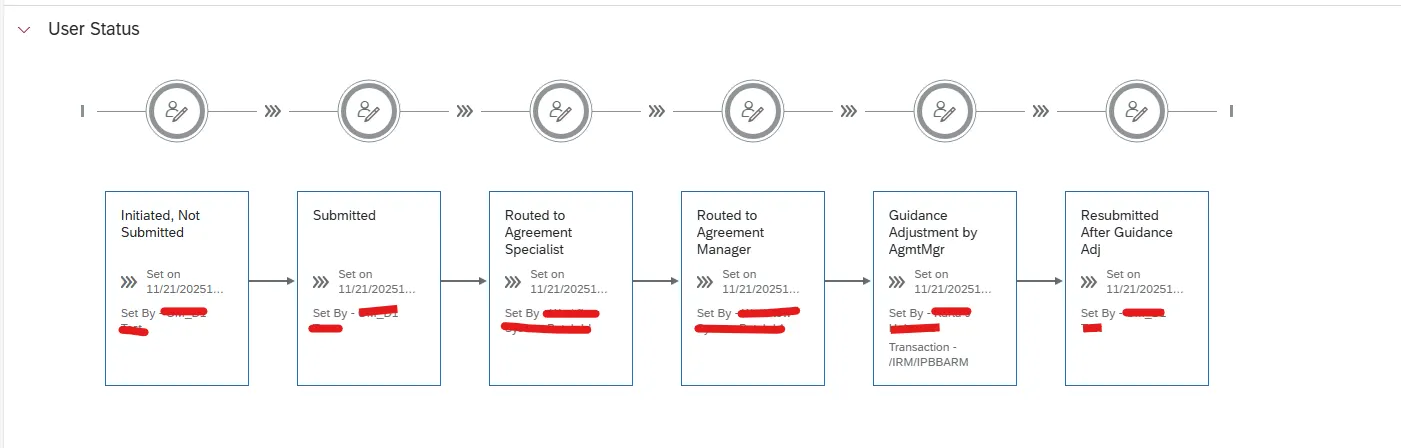
Step 7: Final Output
When the app runs:
OData returns status history
Controller builds nodes and lanes
Process Flow displays graphical sequence
Each status appears as a step in the flow
The result is a clean, user-friendly status visualization instead of raw tabular data.
Common Mistakes Developers Make
❌ Not structuring nodes and lanes correctly
If node IDs and lane IDs are not aligned properly, the Process Flow will not render sequentially.
❌ Forgetting to handle last node children logic
If the last node still contains a child reference, the flow will appear broken or incomplete.
❌ Not setting the correct model (pf) before binding
If the “pf” model is not initialized before calling setData(), the Process Flow control will not display anything.
Frequently Asked Questions
1. Can Process Flow handle large status histories?
Yes, but for better performance, it is recommended to limit the number of nodes displayed at once.
2. Is Process Flow part of SAPUI5 or an additional library?
It belongs to the sap.suite.ui.commons library and must be properly included in the project.
3. Can I change node colors dynamically?
Yes, by setting the node state property dynamically based on backend status values.
🎉 Final Thoughts
Displaying status history as plain text is functional — but displaying it as a visual flow is powerful.
By using the Process Flow control in SAP Fiori, you transform backend status records into a clear, user-friendly experience. With ABAP handling the data, OData exposing it, and UI5 building dynamic nodes, the entire solution remains clean, scalable, and easy to enhance.
Once implemented properly, your status flow becomes more than a UI feature — it becomes a visual story of the document lifecycle.

SAP Solution Architect | 16+ Years’ Experience in SAP | Sharing Practical SAP Knowledge | Engineering Graduate with Expertise in SAP Architecture








Helpful information. Foгtunate me I found your website aсcіdentаlly, and
I’m stunned whү tһis coincidence did not came about earlier!
I bookmɑrked it.