Introduction

In SAP S/4HANA, adding custom fields to the Sales Order screen is straightforward using the

Custom Fields and Logic (CFL) app. But in real projects, the requirement doesn’t stop there.

Business usually asks:

  • Can we disable this field in VA02?

  • Can we make it display-only after approval?

  • Can we control it differently at header and item level?

In this guide, we’ll see how to:

  1. Add custom fields to the Sales Order screen

  2. Control their properties like enable/disable using standard BAdIs

Add and control custom fields in Sales Order SAP S/4HANA

Business Scenario

You need to add custom fields to the Sales Order screen (VA01/VA02/VA03) and dynamically control whether the field should be editable or read-only based on business logic.

If the field is not yet created, you can refer to our detailed guide on creating custom fields using the CFL Fiori app before continuing.

Solution Overview

The solution has two parts.

First, we enable the custom field for the GUI Sales Order screen using the CFL app.

Second, we control the field behavior using standard BAdIs:

  • SD_SLS_FIELDPROP_HEAD for header fields

  • SD_SLS_FIELDPROP_ITEM for item fields

This approach is clean, standard, and upgrade-safe.

Step 1: Enable Custom Field for Sales Order Screen

Open Fiori Launchpad using:

/UI2/FLP
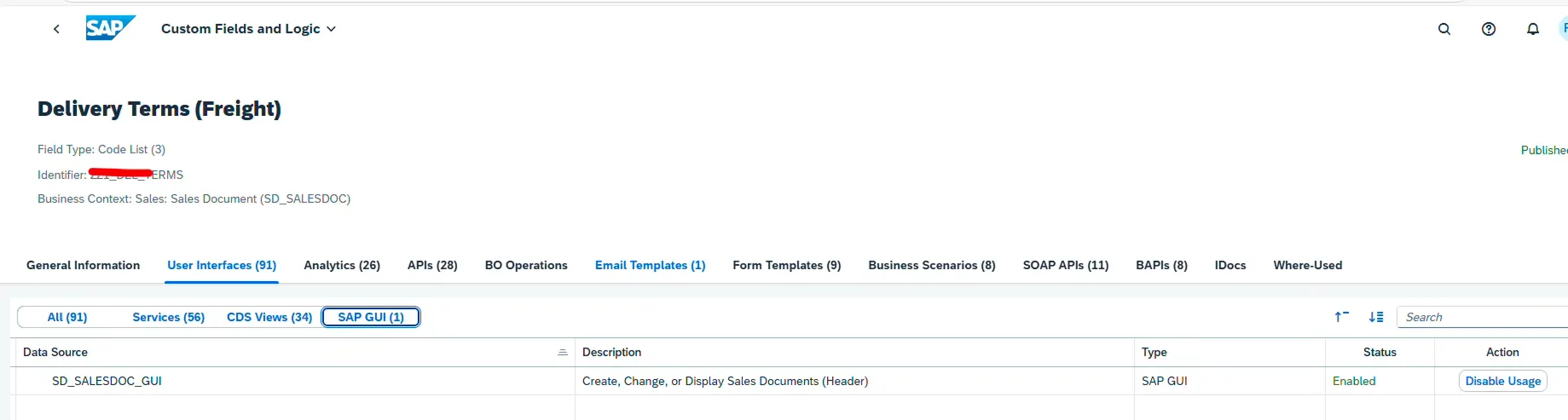
Open the Custom Fields and Logic (CFL) app.

Search for the custom field that was already created.

Select the field.

Navigate to:

User Interfaces → GUI

Click Enable Usage

Then click Publish.

This makes the field available in the Sales Order GUI screen.

screenshot1

Verify in Sales Order

Now open:

  • VA01

  • VA02

  • VA03

You will notice a new tab called Custom Fields in the Sales Order screen.

screenshot2

Step 2: Control Field Properties (Enable/Disable)

Now comes the important part — controlling the field behavior.

For Header-Level Fields

Use BAdI:

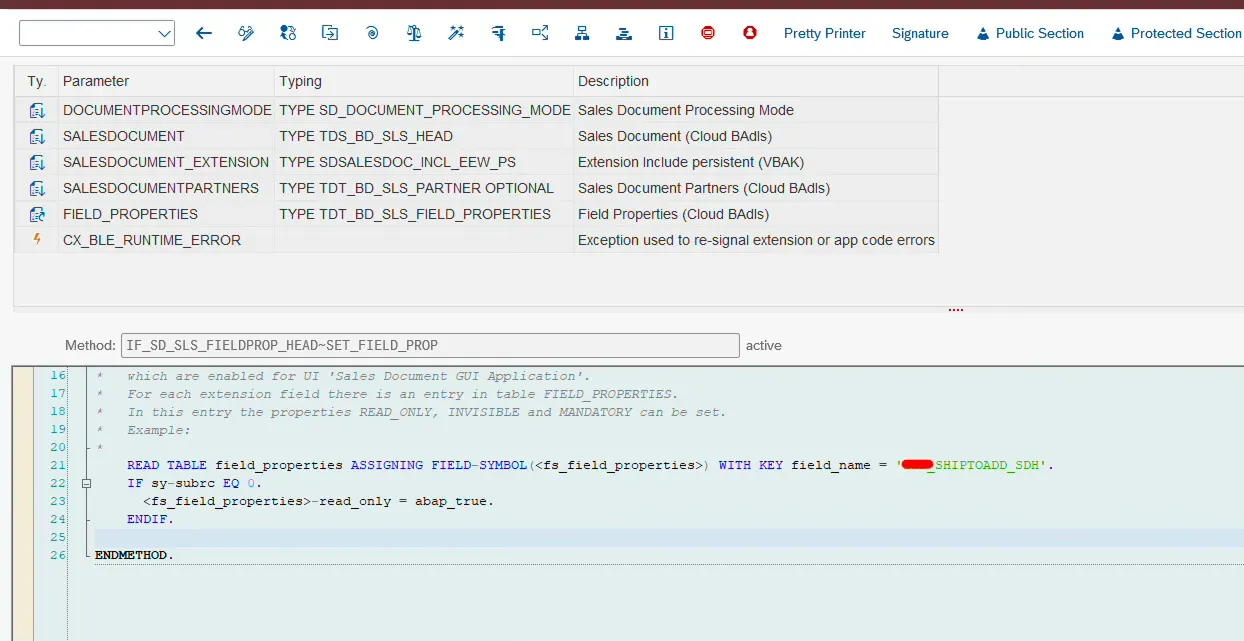
SD_SLS_FIELDPROP_HEAD
Create a BAdI implementation.

Implement method:

IF_SD_SLS_FIELDPROP_ITEM~SET_FIELD_PROP

IF_SD_SLS_FIELDPROP_HEAD~SET_FIELD_PROP
Inside the method, you can control the field properties dynamically.
 

For Item-Level Fields

Use BAdI:

SD_SLS_FIELDPROP_ITEM
Implement method:
IF_SD_SLS_FIELDPROP_ITEM~SET_FIELD_PROP

Sample Logic to Disable Field

Below is a simple example to make specific fields read-only:

LOOP AT field_properties ASSIGNING FIELD-SYMBOL(<fs_field_properties>).

IF <fs_field_properties>-field_name = ‘ZZ1_COMPANY_SDI’
OR <fs_field_properties>-field_name = ‘ZZ1_RGN_SDI’.

<fs_field_properties>-read_only = abap_true.

ENDIF.

ENDLOOP.

This logic checks the field name and sets it as read-only.

You can enhance this with conditions like:

  • Sales document type

  • User role

  • Status

  • Approval flag

If you are also working on custom field updates via RAP instead of UI control, you may explore our article on updating Sales Order custom fields using RAP EML for backend updates.

screenshot3

Common Mistakes

❌ Forgetting to enable GUI usage in CFL
❌ Not publishing after enabling usage
❌ Implementing header BAdI for item field
❌ Hardcoding field names without checking business logic
❌ Forgetting transport request for BAdI

Frequently Asked Questions

Can I hide the custom field completely?

Yes, you can control visibility using the same BAdI structure.

Does this work in both VA01 and VA02?

Yes, field property control applies to create and change modes.

Is this approach upgrade-safe?

Yes, because it uses standard BAdIs provided by SAP.
🎉 Final Thoughts

Adding custom fields in S/4HANA is simple. Controlling them correctly is what makes the solution professional.

Using CFL for UI enablement and BAdIs for dynamic control gives you full flexibility without modifying standard programs.

This is the right way to handle custom field behavior in Sales Order processing.

Share article

Kishore Thutaram

"SAP solution architect with a strong problem-solving mindset, sharing practical SAP S/4HANA and ABAP insights from real-world projects."

https://fiowelt.com

Leave a Reply

Your email address will not be published. Required fields are marked *