- February 11, 2026
- Kishore Thutaram
- 0
Introduction
Standard Fiori apps usually display static tiles. But what if your business users want something more dynamic?
Imagine maintaining tile text, tooltip, and navigation links inside a custom table — and having the Fiori app automatically generate tiles based on that data.
No hardcoding. No redeployment for every change. Just clean backend-driven UI behavior.
You may also explore how to create custom fields in SAP S/4HANA using Fiori apps for flexible extensibility.
In this article, you’ll learn how to create multiple dynamic tiles inside a single SAP Fiori application using:
Custom table configuration
ABAP logic (FM)
OData/CDS service
SAPUI5 dynamic tile creation
Let’s build it step by step.

Business Scenario
The requirement is simple:
Maintain tile text, tooltip, and navigation path in a custom table
Fetch the data via OData
Dynamically generate multiple tiles inside one Fiori app
Navigate based on backend configuration
This allows functional teams to change tile behavior without modifying UI5 code.
Step 1: Create Custom Table for Tile Configuration (SE11)
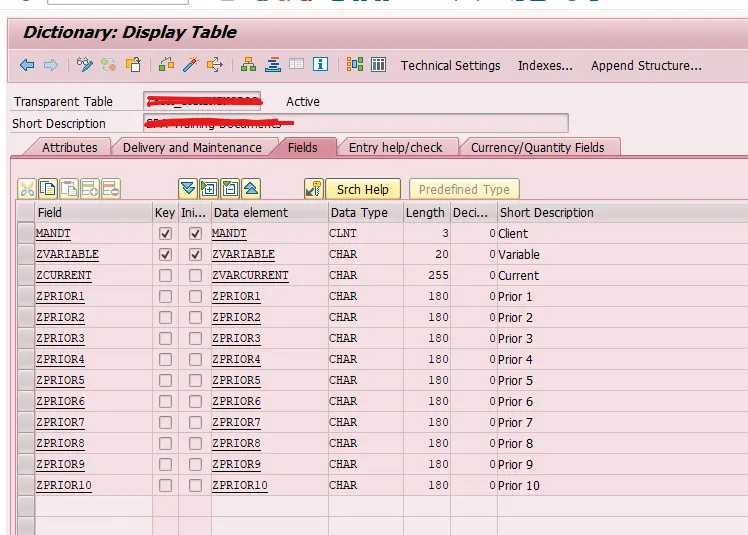
First, create a custom table to store tile-related configuration.
Maintain fields similar to:
Tile Header (Title Text)
Tooltip Text
Navigation Link / Target URL
Any additional identifier if required
Activate the table after maintaining technical settings.
If technical settings were maintained in a separate screen:
This table becomes the backend control center for all tiles.
Step 2: Maintain Sample Data in the Custom Table (SM30)
After activation, generate Table Maintenance (if required) and maintain entries.
Add multiple records — each record represents one tile.
For example:
Record 1 → Header A, Tooltip A, Link A
Record 2 → Header B, Tooltip B, Link B
Now the backend configuration is ready.
Step 3: Create ABAP Logic to Fetch Table Data
Now create a Function Module (or class method) to fetch entries from the custom table.
The logic should:
Select all relevant records
Move data into an exporting structure
Prepare it for OData exposure
Example flow:
SELECT statement from custom table
LOOP and append data to output structure
This function acts as the data provider for OData.
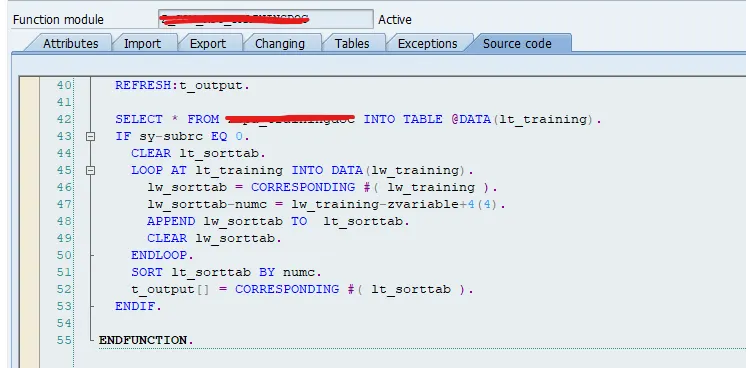
Custom Table Structure to maintain the texts.
Step 4: Implement OData Method
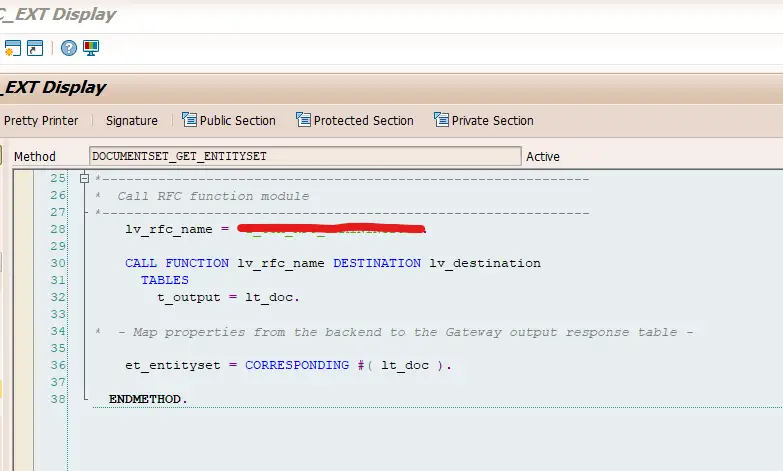
In the DPC_EXT class, implement the method to call the Function Module and populate entity set data.
The method should:
Call the custom FM
Map returned data to OData structure
Append data to entity set
Test the service in Gateway Client to verify multiple records are returned.
Step 5: SAPUI5 – XML View Configuration
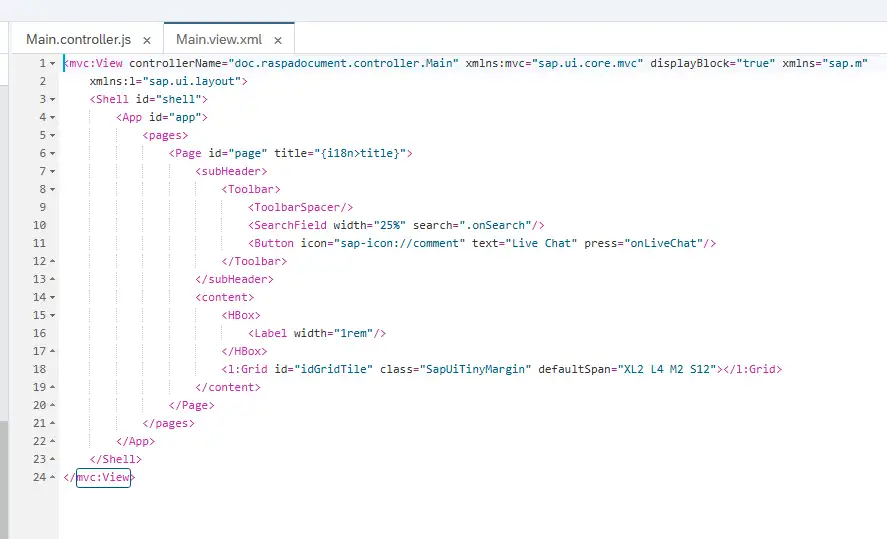
In your UI5 project, define a Grid container inside the view to hold dynamic tiles.
Your XML already contains:
<l:Grid id=”idGridTile” class=”SapUiTinyMargin” defaultSpan=”XL2 L4 M2 S12″></l:Grid>
This grid will hold dynamically generated tiles.
Do NOT create static GenericTile elements inside XML.
<mvc:View controllerName=”doc.controller.Main” xmlns:mvc=”sap.ui.core.mvc” displayBlock=”true” xmlns=”sap.m”
xmlns:l=”sap.ui.layout”>
<Shell id=”shell”>
<App id=”app”>
<pages>
<Page id=”page” title=”{i18n>title}”>
<subHeader>
<Toolbar>
<ToolbarSpacer/>
<SearchField width=”25%” search=”.onSearch”/>
<Button icon=”sap-icon://comment” text=”Live Chat” press=”onLiveChat”/>
</Toolbar>
</subHeader>
<content>
<HBox>
<Label width=”1rem”/>
</HBox>
<l:Grid id=”idGridTile” class=”SapUiTinyMargin” defaultSpan=”XL2 L4 M2 S12″></l:Grid>
</content>
</Page>
</pages>
</App>
</Shell>
</mvc:View>
Step 6: Fetch Data in Controller (getData Function)
Inside the controller, use oModel.read() to call the OData service.
Your implementation includes:
oModel.read(“/DocumentSet”, {
success: function (oData) {
// Tile creation logic
}
});
The success function will receive multiple records from backend.
Step 7: Dynamically Create Generic Tiles
Inside the success callback:
Loop through
oData.resultsCreate
sap.m.GenericTileAssign header and tooltip dynamically
Add tile to Grid using
addContent()
Example from your implementation:
var GenericTile = new sap.m.GenericTile({
header: oData.results[i].Zcurrent,
tooltip: oData.results[i].Zprior1,
press: [that.onPressTile, that]
});
this.byId(“idGridTile”).addContent(GenericTile);
Now tiles are generated dynamically based on backend entries.
This pattern is similar to implementing custom BADI enhancements on MV45AFZZ in SAP, where backend logic controls system behavior.
Step 8: Implement Tile Navigation (onPressTile)
Your controller contains:
onPressTile: function (oEvent) {
var oSelectedTileTile = oEvent.getSource().getHeader();
Logic:
Identify selected tile header
Match it with backend data
Check Link value
If Link = “Submit-Window” → call displayForm()
Else → open URL using window.open()
If empty → show MessageToast
This makes navigation completely backend-controlled.
Controller : JS code
getData: function () {
var JsonData = [];
var that = this;
that.getView().setBusy(true);
oModel.read(“/DocumentSet”, {
async: true,
success: function (oData) {
that.getView().setBusy(false);
if (oData && oData.results && oData.results[0]) {
//Adding the tile
var GenericTile = new sap.m.GenericTile({
header: oData.results[i].Zcurrent,
tooltip: oData.results[i].Zprior1,
class: “sapUiTinyMarginBegin sapUiTinyMarginTop tileLayout”,
press: [that.onPressTile, that],
tileContent: [new sap.m.TileContent({
size: “Auto”,
content: new sap.m.NumericContent({
icon: icon,
value: ” “
})
})]
// ,
// dragDropConfig : new sap.ui.core.dnd.DragDropInfo({
});
onPressTile: function (oEvent) {
var oSelectedTileTile = oEvent.getSource().getHeader();
var oModel = this.getView().getModel(“JSONFeedDModel”).getData();
if (oModel.length > 0) {
var aTileData = $.grep(oModel, function (filter) {
return filter.current === oSelectedTileTile;
});
if (aTileData[0].Link === “Submit-Window”) {
this.displayForm();
} else {
if (aTileData[0].Link) {
window.open(aTileData[0].Link);
} else {
MessageToast.show(“link not found”);
}
}
}
},
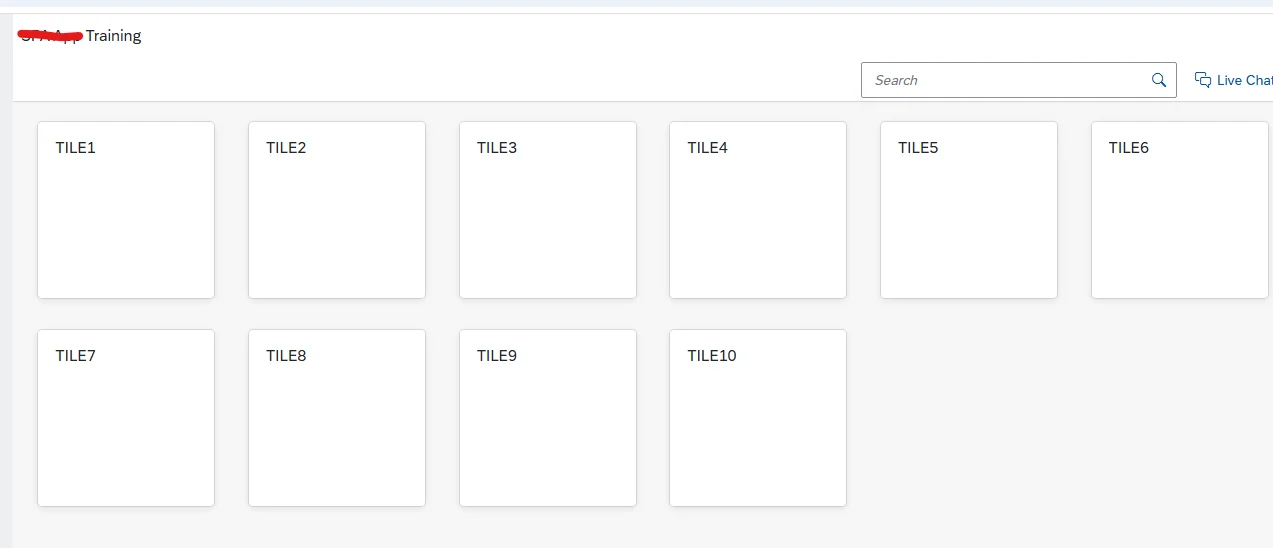
Final Output
When the application loads:
OData fetches multiple records
Controller loops through data
Tiles are generated dynamically
Navigation works based on backend configuration
Important Development Notes
Do not hardcode tile values in XML
Always validate navigation links
Keep backend table structure simple
Ensure OData service returns all required fields
Frequently Asked Questions
1. Can I control tile visibility based on user roles?
Yes, you can filter custom table entries in the backend based on user roles so that only authorized tiles are generated.
2. Is it mandatory to use a Function Module for fetching data?
No, you can use a class method, CDS view, or RAP service as long as the OData service returns the required tile data.
3. Can I add icons or additional tile content dynamically?
Yes, by storing icon names or additional fields in the custom table and binding them while creating the GenericTile dynamically.
🎉 Final Thoughts
By following this structured approach, you can build a flexible, backend-driven Fiori application where business users control tile behavior without UI code changes.
This implementation keeps the UI clean, scalable, and easy to maintain while strictly separating configuration from presentation logic.

SAP Solution Architect | 16+ Years’ Experience in SAP | Sharing Practical SAP Knowledge | Engineering Graduate with Expertise in SAP Architecture