- June 25, 2026
- Kishore Thutaram
- 0
Introduction
Exporting data to Excel is one of the most requested features in SAP Fiori applications. While standard exports work well for simple datasets, business users often need multiple related datasets organized into separate worksheets within a single Excel file.
Using the ExcelJS library, SAP UI5 developers can generate professional Excel workbooks containing multiple tabs, custom column headers, formatting, and downloadable reports directly from Fiori applications. This approach improves user experience and eliminates the need for managing multiple Excel files.

Business Scenario
A business application contains multiple datasets displayed in SAP Fiori tables, such as discounts, material information, pricing details, and reporting data. Users need to download all related information for analysis and sharing.
Instead of generating separate Excel files for each dataset, the requirement is to create a single Excel workbook containing multiple tabs, allowing users to easily navigate and analyze information in one consolidated report.
Solution Overview
This solution uses the ExcelJS JavaScript library inside a SAP UI5 application.
The process includes:
✔ Loading ExcelJS into the application
✔ Reading data from the model
✔ Creating an Excel workbook
✔ Generating multiple worksheets dynamically
✔ Populating each worksheet with different datasets
✔ Downloading the workbook as a single Excel file
This approach provides a flexible and scalable export solution for SAP Fiori applications.
Step 1: Add ExcelJS Library
Download the ExcelJS library and place the file inside your SAP UI5 project.
Example:
js/exceljs.min.jsRegister the library in the manifest.json file.
"resources": {
   "js": [{
      "uri": "js/exceljs.min.js"
   }]
}
This ensures the ExcelJS library is loaded when the application starts.
Step 2: Create Fiori Table and Export Button
Create a table in your XML view and add an Export button.
<Button
    id="Export"
    text="Export"
    press="fnDataExport"/>
When users click the Export button, the Excel generation process begins.
This helps readers understand the UI before moving into the controller implementation.
Step 3: Create Workbook and Worksheets
Inside the controller, create a workbook and define multiple worksheets.
var workbook = new ExcelJS.Workbook();

var worksheet = workbook.addWorksheet('TAB1');

var worksheet2 = workbook.addWorksheet('TAB2');

workbook.SensitivityLabel = 'Confidential';
Each worksheet will represent a separate tab in the Excel file.
This gives developers a clear understanding of the ExcelJS setup.
Step 4: Prepare Data for Each Tabc
The application data is filtered and mapped separately for each worksheet.
Example:
var aExcelData = oData.map(function(item) {

 if(item.TFlag === 'TAB1DATA') {

   return {
      DeletionIndi : item.DelInd,
      Countered : item.Counter,
      ValidFrom : item.Validfrom,
      ValidTo : item.Validto
   };

 }

});
Similarly, create another dataset for the second worksheet.
var aExcelData2 = oData.map(function(item){

 if(item.TFlag === 'TAB2DATA'){

   return {
      Matnr : item.Matnr,
      Maktx : item.Maktx
   };

 }

});
This allows different business data to be exported into different Excel tabs.
Step 5: Create Excel Headers
Define custom column headers for each worksheet.
const columns = [
'Deletion Indic.',
'Locked',
'Countered',
'Valid From',
'Valid To'
];
Apply formatting:
headerRow.font = {
   bold: true,
   name: 'Arial',
   size: 10
};
Benefits:
- Better readability
- Professional formatting
- User-friendly reports
Step 6: Populate Worksheet Data
Add business data into the worksheet rows.
worksheet.addRow([
   row.DeletionIndi,
   row.Countered,
   row.ValidFrom,
   row.ValidTo
]);
Repeat the process for each worksheet.
This creates a structured Excel workbook with multiple tabs.
Step 7: Download Excel File
Once all worksheets are populated, generate and download the Excel file.
workbook.xlsx.writeBuffer().then((buffer) => {

 const blob = new Blob([buffer], {
   type:
'application/vnd.openxmlformats-officedocument.spreadsheetml.sheet'
 });

});
Create a download link:
link.download = filename + '.xlsx';
link.click();
The workbook is downloaded automatically.
Complete Code & Output
View – Define table with columns
XML View :
<core:FragmentDefinition xmlns:core="sap.ui.core" xmlns="sap.m" xmlns:l="sap.ui.layout" xmlns:f="sap.ui.layout.form" xmlns:t="sap.ui.table">
<t:Table id="idTable" selectionMode="None" visible="{TabVisible>/Data}" fixedColumnCount = "4"
rows="{ path: 'Data>/', filters : [{ path : 'Flag', operator : 'EQ', value1 : 'DCCC' }]}">
<t:extension>
<OverflowToolbar>
<Title text="Discount "/>
<ToolbarSpacer/>
<Button id = "Export" text="Export" press = "fnDataExport"/>
</OverflowToolbar>
</t:extension>
<t:columns>
</t:columns>
</t:Table>
</core:FragmentDefinition>
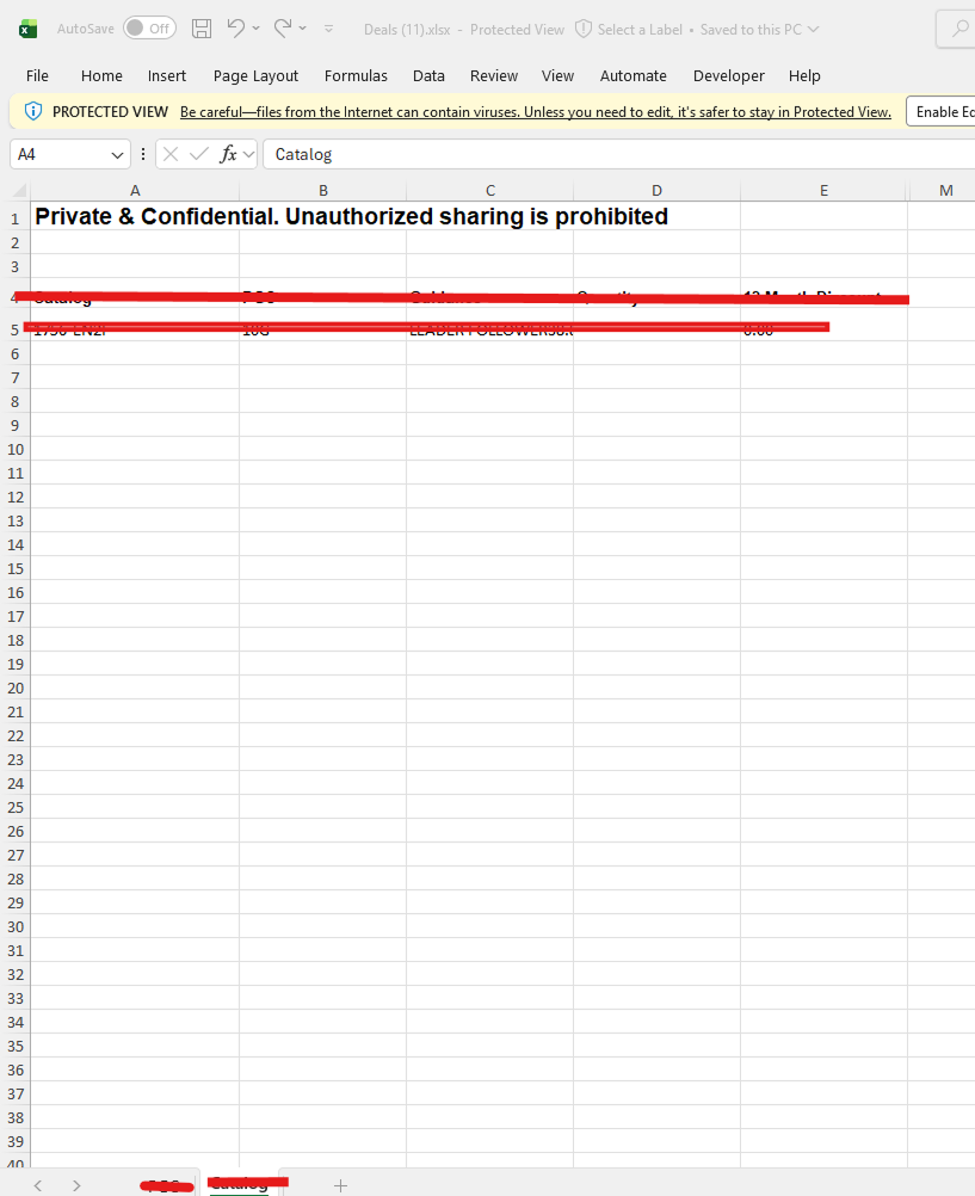
Excel download logic in controller file.
Controller.Js
DataExport: function (oEvnt) {
var oData = this.getView().getModel("Data").getData();
var workbook = new ExcelJS.Workbook();
var worksheet = workbook.addWorksheet(‘TAB1’);
var worksheet2 = workbook.addWorksheet(‘Tab2');
workbook.SensitivityLabel = 'Confidential';
this.addMainData(workbook, worksheet, worksheet2, oData)
.then(() => this.downloadExcel(workbook))
.catch((error) => {
MessageBox.show("Error during Excel Preparation", {
icon: MessageBox.Icon.ERROR,
title: "Error",
actions: [MessageBox.Action.OK]
});
});
addMainData: function (workbook, worksheet, worksheet2, data) {
return new Promise((resolve) => {
//Sheet1
var aExcelData = oData.map(function (item) {
return {
//columns
if (item.TFlag === 'TAB1DATA') {
DeletionIndi: item.DelInd,
Countered: item.Counter,
ValidFrom: item.Validfrom,
ValidTo: item.Validto,
FixedVal: item.Fvdate,
PriceGroup: item.Pgc,
}
}
});
//Sheet 2
var aExcelData2 = oData.map(function (item) {
if (item.TFlag === "Tab2data") {
return {
Mat1: item.Mat1,
Mat2: item.Mat2,
Maktx: item.Maktx,
Matnr: item.Matnr,
Plcstatus: item.Plcstatus,
Rplcinfo: item.Rplcinfo
};
}
});
Add column headings
if (aExcelData.length > 0) {
//Sheet 1
// Getting the main data to be filled in
const columns = ['Deletion Indic.', "Locked", "Countered", 'Valid From', 'Valid To', 'Fixed Val.Date', 'Price Group'
];
// Make the entire first row bold
columns.forEach((header, index) => {
worksheet.getColumn(index + 1).width = header.length + 5; // Adjust the width as needed
});
const headerRow = worksheet.getRow(1);
headerRow.values = columns;
// Make header row bold and set row height
headerRow.font = {
bold: true,
name: 'Arial',
size: 10
};
// add data
Promise.all(aExcelData.map(row => worksheet.addRow([row.DeletionIndi, "", row.Countered, row.ValidFrom,
row.ValidTo, row.FixedVal, row.PriceGroup, row.PGDescription, row.ReqDiscount, row.Rate,
])))
.then(() => {
// All rows have been added
resolve();
})
.catch(error => {
// Handle any errors
reject(error);
});
// Sheet 2 column headings
if (aExcelData2.length > 0) {
// Build Columns
const columns2 = ['Deletion Indic.', 'Locked', 'Countered', 'Valid From', 'Valid To', 'Fixed Val.Date'
];
columns2.forEach((header, index) => {
worksheet2.getColumn(index + 1).width = header.length + 5; // Adjust the width as needed
});
// Add header row
const headerRow2 = worksheet2.getRow(1);
headerRow2.values = columns2;
// Make header row bold and set row height2
headerRow2.font = {
bold: true,
name: 'Arial',
size: 10
};
// build excel body
Promise.all(aExcelData2.map(row => worksheet2.addRow([row.DelInd, "", row.Counter,
row.Validf,
row.Validt,
row.Fvdate,
row.Matnr,
row.Maktx,
])))
.then(() => {
// All rows have been added
resolve();
})
.catch(error => {
// Handle any errors
reject(error);
});
// Download Excel File
downloadExcel: function (workbook) {
var currentdate = new Date();
// var currentDateTimeString = currentdate.toLocaleString();
var filename = workbook.worksheets[0].name;
filename = 'TEST;
this.filename = filename + "-" + currentdate.getFullYear() + currentdate.getMonth() + currentdate.getDay() + "_" +
currentdate.getHours() + currentdate.getMinutes() + currentdate.getSeconds();
var that = this;
return workbook.xlsx.writeBuffer().then((buffer) => {
const blob = new Blob([buffer], {
type: 'application/vnd.openxmlformats-officedocument.spreadsheetml.sheet'
});
const link = document.createElement('a');
link.href = URL.createObjectURL(blob);
var filename = that.filename;
link.download = filename + '.xlsx';
link.click();
});
}
Common Mistakes and Fixes
Using Large Datasets Without Pagination
Exporting thousands of records at once can affect browser performance.
Fix: Implement batching or server-side filtering.
Missing ExcelJS Library
The export button may fail if the library is not loaded properly.
Fix: Verify manifest.json configuration.
Incorrect Worksheet Names
Duplicate worksheet names can cause issues.
Fix: Ensure each worksheet has a unique name.
Undefined Data in Excel
Rows may appear blank when model fields are mapped incorrectly.
Fix: Validate the data structure before exporting.
Formatting Issues
Column widths may become too small for business users.
Fix: Set worksheet column widths dynamically.
Frequently Asked Questions
Can ExcelJS create multiple worksheets in one file?
Yes. ExcelJS allows unlimited worksheets within a single workbook.
Does this work in SAP Fiori Elements?
Yes. The same approach can be adapted for Fiori Elements applications.
Can I apply styling to Excel cells?
Yes. ExcelJS supports fonts, colors, borders, alignment, and more.
Internal Resources
While implementing export functionality, understanding application flow and backend processing can be helpful. If you’re troubleshooting data-related issues, check our guide on Debugging ABAP Programs Effectively.
For applications handling large datasets, it’s also worth reviewing our Top ABAP Performance Tuning Techniques article to ensure export operations remain efficient.
If your exported data originates from integrations, our guide on Send Customer Invoice with Custom Fields Using IDOC explains how data can be structured and transferred across SAP systems.
🎉 Final Thoughts
Exporting SAP Fiori table data into Excel with multiple tabs significantly improves reporting and user experience. Using ExcelJS, developers can generate professional Excel workbooks that organize business data into separate worksheets while maintaining flexibility and scalability.
By combining SAP UI5 with ExcelJS, organizations can provide powerful reporting capabilities directly within their Fiori applications without relying on external tools.

SAP Solution Architect | 16+ Years’ Experience in SAP | Sharing Practical SAP Knowledge | Engineering Graduate with Expertise in SAP Architecture